Your calendar.
Now as a Bot.
Ask Grok Bot to check your availability, find a time and book it. Connect your Cal.com account and keep scheduling in the conversation.
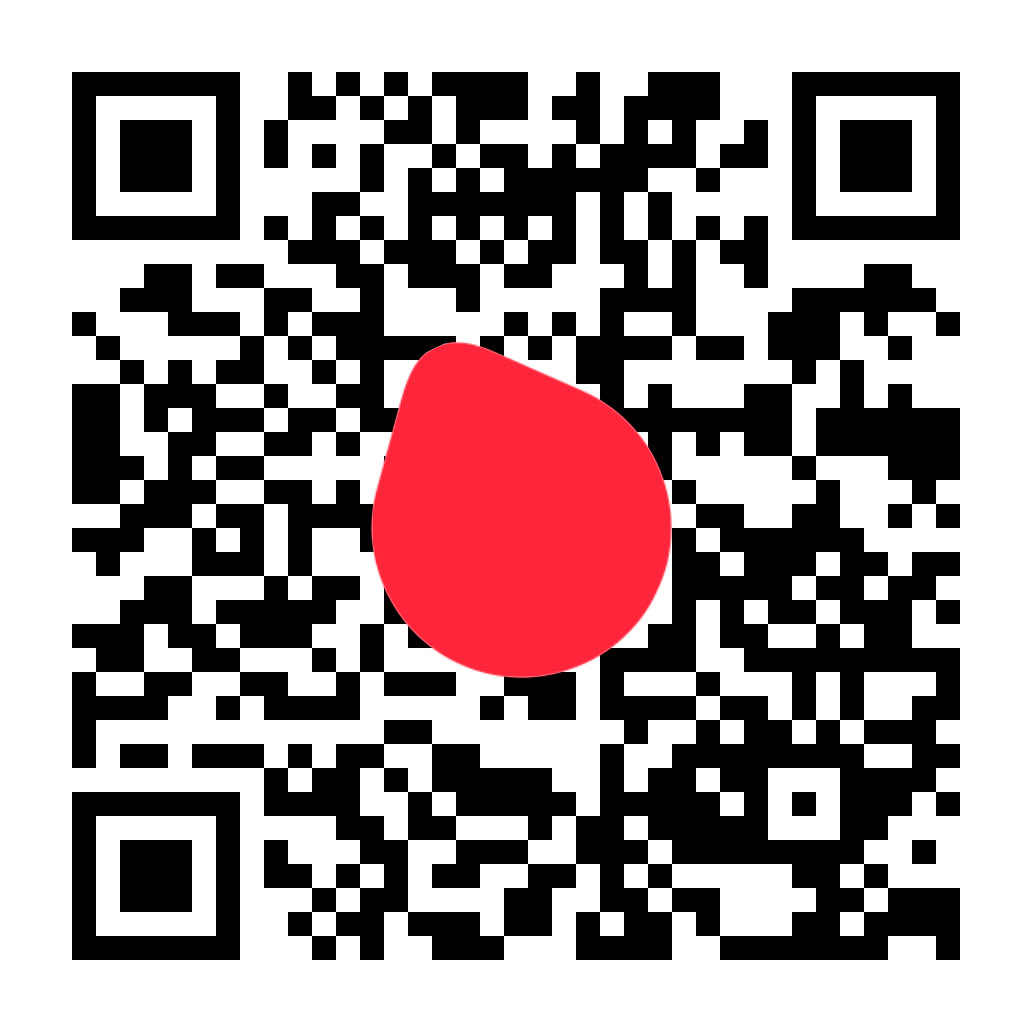
On your phone? Scan to open Cal.com in Grok Bot.
How it works
Message Grok Bot like you would a teammate. It uses Cal.com’s scheduling tools behind the conversation.
 Hiring calls
Schedule a 30-minute interview with Jordan tomorrow afternoon.
Checking Jordan’s Cal.com event type and availability…
Jordan’s interview link has two open times tomorrow.
- Tomorrow · 2:00 PM
- Tomorrow · 3:30 PM
Interview with Jordan
Tomorrow, 2:00–2:30 PM
Booked after your confirmation.
The invite is on its way, and the event is on your calendar.
- 01
Message Grok Bot
Open Grok and tell Grok Bot what you need to schedule.
- 02
Connect your Cal.com account
OAuth connects your account so Grok Bot can read your availability and event types.
- 03
Pick a time and confirm
Grok Bot suggests available times and asks you to confirm before it books.
- 04
It lands on your calendar
Grok Bot books in Cal.com, invites go out and the event lands on your connected calendar.
Ask Grok Bot. It handles the calendar.
Once your Cal.com account is connected, Grok Bot answers scheduling questions and makes the booking, without you leaving the conversation.
Ask when you’re free
Grok Bot reads your Cal.com availability and busy times, then answers with the times that are open.

Have it book the meeting
Name the person and the day. Grok Bot finds a time and books it once you confirm.

Change plans in one message
Tell Grok Bot to reschedule or cancel a booking, and your guest hears about it.

Ask what’s coming up
Grok Bot lists your upcoming bookings in the chat, so you don’t have to open your calendar.

Get a link to share
Ask Grok Bot for a booking link when someone would rather pick their own time.

Change how you’re booked
Grok Bot can work with your event types and availability, so what people can book matches your week.
How to add it
From a link to your first scheduling request.
- 1Open the link or scan the QR codeUse the Add Grok Bot button, or scan the QR code with your phone.
- 2Select Add BotAdd the Cal.com Grok Bot.
- 3Connect your Cal.com accountFollow the connection flow to give the bot access to your scheduling account.
- 4Ask Grok BotTry “When am I free tomorrow?” or ask it to find a time and book a meeting.